Safeguard Your Digital Devices Against Online Scams
- Mar 26, 2025
- 4 min read
In today’s hyper-connected world, our digital footprints span multiple devices, from smartphones to laptops. Every time we browse the internet or interact with online content, we risk uncovering our personal information to cybercriminals who aim to exploit vulnerabilities. Protecting your digital presence is crucial, especially as online scams grow more sophisticated.
This post will explore practical ways to safeguard your digital devices and online browsing on your iPhones, Android devices, MacBooks, and PCs. We will provide clear, step-by-step instructions to help you set up security measures that protect your data and reduce the risk of falling victim to scams.

Understanding Online Scams
Understanding the landscape of online scams is the first step in protecting yourself. These scams can vary widely. For instance, phishing attempts occur when attackers impersonate trusted companies to steal sensitive details like passwords or credit card numbers. According to the Federal Trade Commission, Americans lost over $1.9 billion to fraud in just 2021, with phishing being a top contributor.
Malware infections are another concern. These malicious programs can compromise your entire system, steal data, or even hijack your computer. Awareness of these threats significantly enhances your ability to navigate the digital world safely.
Protecting Your iPhone
iPhones come with many built-in security features, but users must also take proactive steps. Here are vital actions you can take to secure your device:
Enable Two-Factor Authentication (2FA)
Two-Factor Authentication adds an important layer of security to your accounts. Even if an attacker gets your password, they need a second verification method to access your account.
Go to Settings > [Your Name] > Password & Security.
Tap Two-Factor Authentication and follow the prompts to set it up.

Visual directions on turning your Two-Factor Authentication on. Image: IDG
Keep Your Software Updated
Keeping your software updated is essential, as regular updates often include security patches against the latest threats.
Navigate to Settings > General > Software Update.
Ensure Automatic Updates is enabled or check for updates manually.

Visual of iPhone Software Update directions.
Use Safari’s Privacy Features
Safari has built-in privacy measures to protect your browsing data.
Open Settings > Safari.
Enable options like Prevent Cross-Site Tracking and Block All Cookies to boost your online privacy.
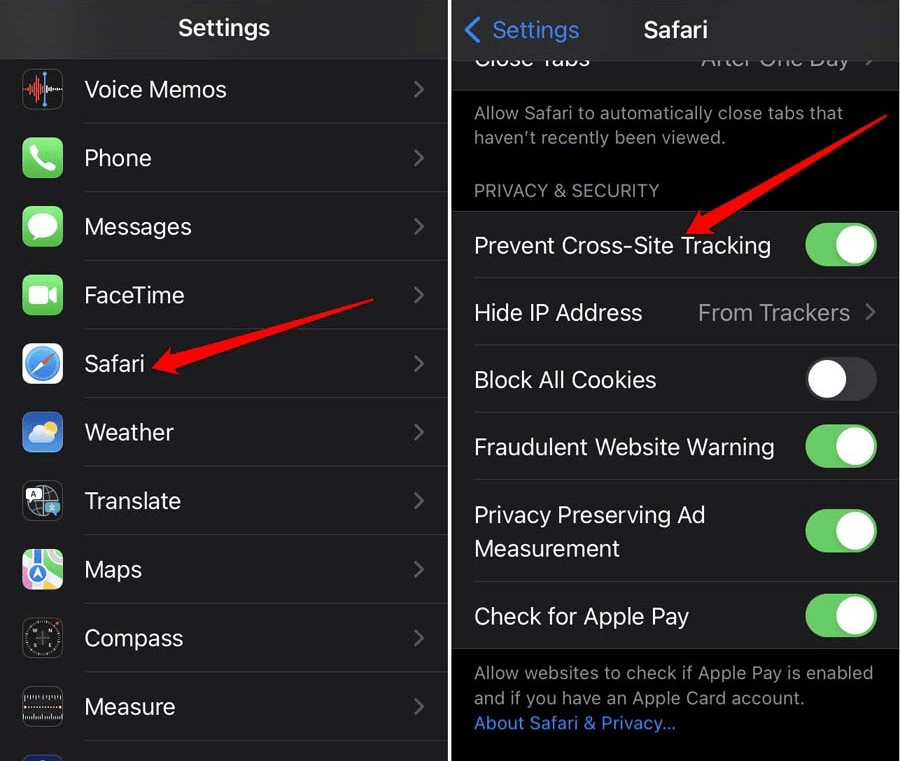
How to Disable Cross-Site Tracking in Safari on iPhone.
Safeguarding Your Android Device
Android devices face unique security challenges, but these steps will enhance your browsing experience:
Install a Reputable Security App
A trusted security app can provide real-time protection against malware and phishing attempts.
Select a reputable security application from the Google Play Store, such as Norton or Bitdefender.
Follow the installation instructions and conduct a full device scan to ensure that your phone is safe.

Install & Set Up Bitdefender Mobile Security for Android.
Use Google Play Protect
Google Play Protect scans apps for harmful behavior and can remove them from your device if there is a threat.
Go to Settings > Security > Google Play Protect.
Ensure it's enabled and run scans regularly.

The big secret behind Google Play Protect on Android.
Turn on Encryption
Encrypting your device protects your sensitive data from unauthorized users.
Go to Settings > Security > Encryption.
Follow the prompts to encrypt your device.

Securing Your MacBook
While MacBooks have a reputation for strong security, additional steps can further protect you from online scams:
Activate Firewall Settings
A firewall helps block unauthorized access to your computer.
Open System Preferences > Security & Privacy > Firewall.
Click Turn On Firewall and customize settings under Firewall Options to enhance your protection.

How to Enable Stealth Mode in Mac OS Firewall for Added Security.
Use a VPN
A Virtual Private Network (VPN) encrypts your internet connection, making it harder for outsiders to monitor your online activities.
Choose a respected VPN service, like ExpressVPN or NordVPN, and install its application.
Activate the VPN whenever you connect to public Wi-Fi or require additional privacy.
Regularly Back Up Your Data
Backing up your data is crucial, ensuring that you can restore your files if a breach occurs.
Use Time Machine with an external hard drive.
Set up Time Machine to back up automatically at regular intervals, such as daily or weekly.

Backing up data on your Mac.
Fortifying Your PC
PCs, especially those running Windows, are frequent targets for cybercriminals. Here are steps to boost your defenses:
Enable Windows Defender and Firewall
Windows Defender offers robust malware protection, while the Firewall prevents unauthorized access.
Go to Start > Settings > Update & Security > Windows Security > Virus & Threat Protection.
Make sure both Windows Defender and the Firewall are enabled.
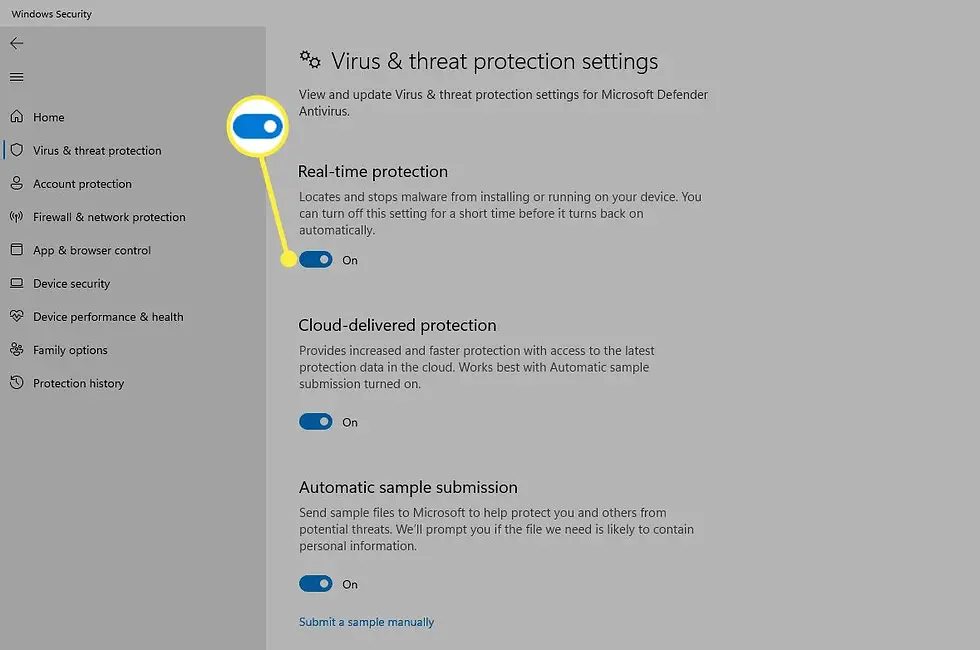
Enable Windows Defender and Firewall on your PC.
Regularly Update Your Operating System
Regular updates to your operating system are vital for security.
Navigate to Settings > Update & Security > Windows Update.
Regularly check for updates and install them as soon as possible.

How to regularly update Windows Update.
Use Secure Browsing Tools
Using browsers that prioritize privacy significantly enhances your online safety.
Consider browsers like Brave or Firefox, which offer better privacy features than others.
Enable privacy settings such as tracker blocking and cookie management to further secure your browsing experience.

Recognizing Scams
No security measure can replace vigilance. Being aware of common scams can help you avoid pitfalls:
Phishing Emails: Be cautious of unsolicited emails requesting immediate action or personal information.
Fake Websites: Check URLs carefully. Ensure secure connections indicated by “https://” and a padlock symbol.
Pop-Up Scams: Do not click on suspicious pop-ups, as these can lead to malicious sites.
Sharpening your scam detection skills is just as essential as implementing security measures.
Safeguard Your Digital Devices Online
In a digital landscape filled with potential threats, safeguarding your browsing experience is vital. By following the strategies outlined for iPhones, Android devices, MacBooks, and PCs, you can create a more secure online environment.
As technology evolves, so do the tactics of cybercriminals. Stay informed, stay alert, and periodically review your security settings to maintain strong defenses against online scams. Your digital footprint holds value; taking proactive steps today ensures better security for tomorrow.
By implementing these practical methods, you can enjoy a secure browsing experience and protect your digital identity from potential threats.


Comments